Cornerstone
Jump to: Cornerstone Accuquote (Web) | Cornerstone Accuquote (Desktop)
Cornerstone Accuquote is moving to the web! Users will transition from the current desktop application to the Cornerstone Brands web Centerpoint solution. Please ensure you have activated the Cornerstone Accuquote module in Saberis and updated your module settings as needed.
Cornerstone Accuquote (Web)
-
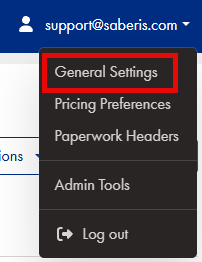
To activate the Saberis export process, first select "General Settings" from your user profile.
-
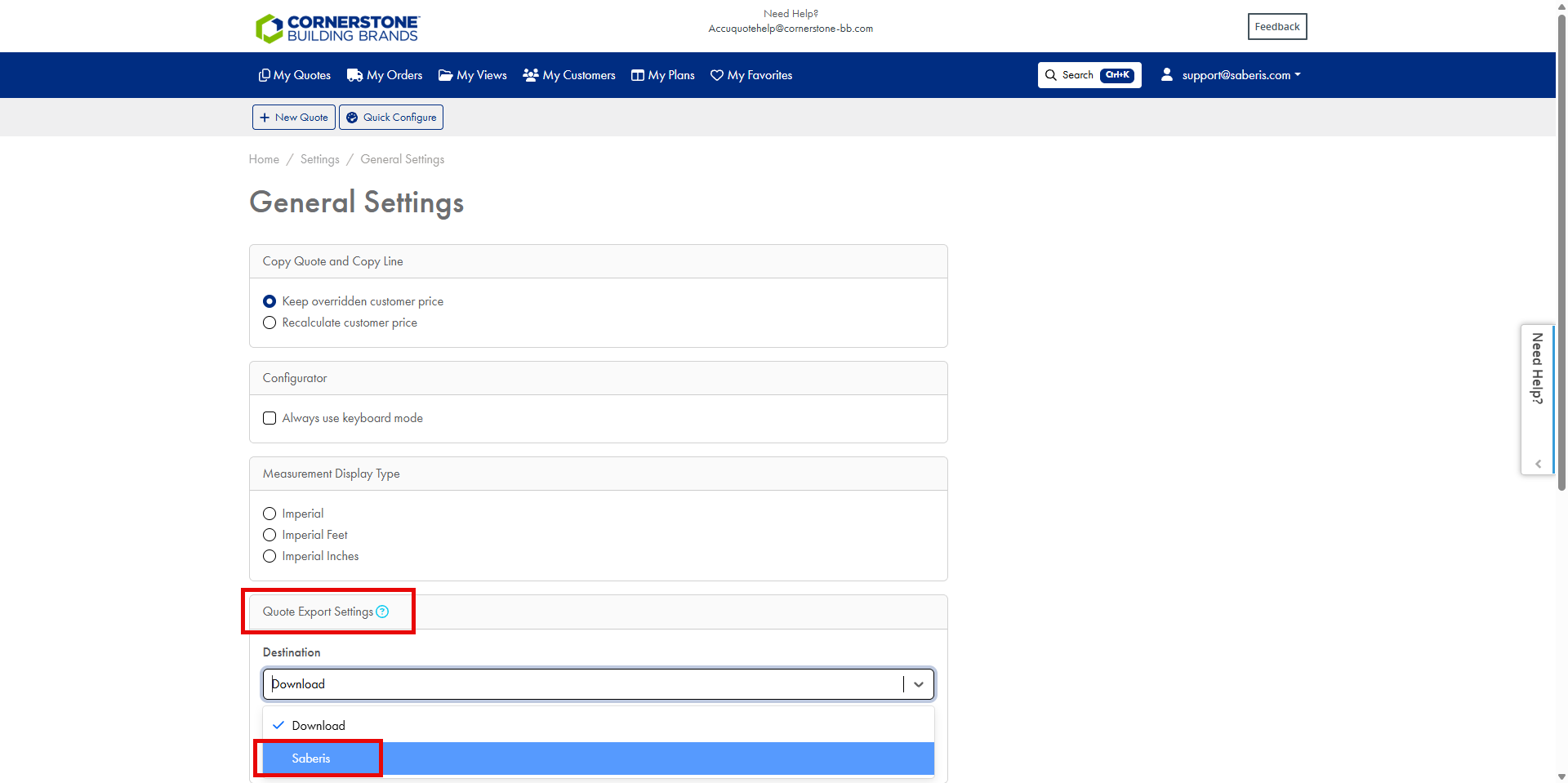
Scroll down in the General Settings to "Quote Export Settings" and select "Saberis", then select "save".
-
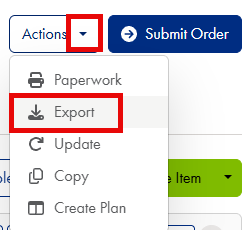
Open a quote. Navigate to the "Actions" button.

-
From the drop down list, select "Export".
-
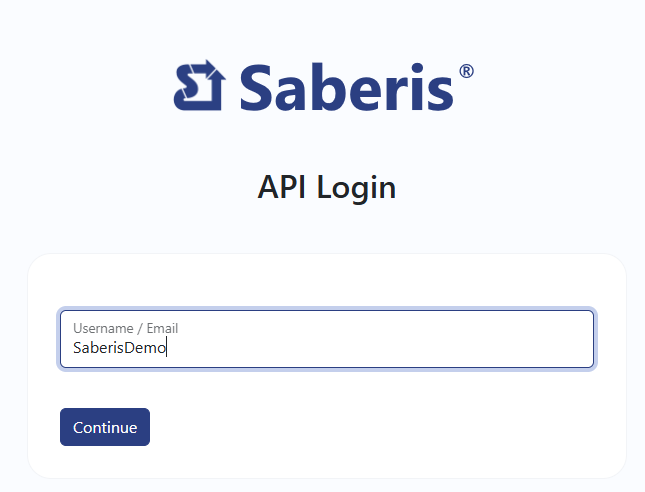
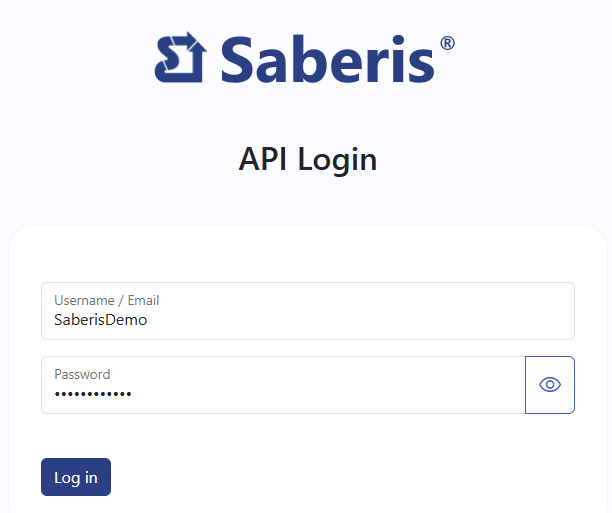
The Saberis API Login page will appear for authentication. Enter your username or email address, then select "Continue".
-
You will then be prompted for your Saberis Password, or redirected for authentication with your company's Identity Provider.
-
Once authenticated, you will be redirected back to the Cornerstone Accuquote session. You should receive a message stating "Export Successful".

Now go to your ERP system if the system is "pulling" down orders from the Saberis Server or if Saberis is "pushing" orders into the system.
If your system does not do the above, then log into your SaberisConnect account and you will see the quote/order already processed and ready for downloading.
If you receive an API error while exporting to SaberisConnect, you can temporarily set the Quote Export Settings to "Download". This allows you to then upload and process the document using the Cornerstone module in SaberisConnect.
Cornerstone Accuquote (Desktop)
For more information, see our video on the: Cornerstone Integration Process
-
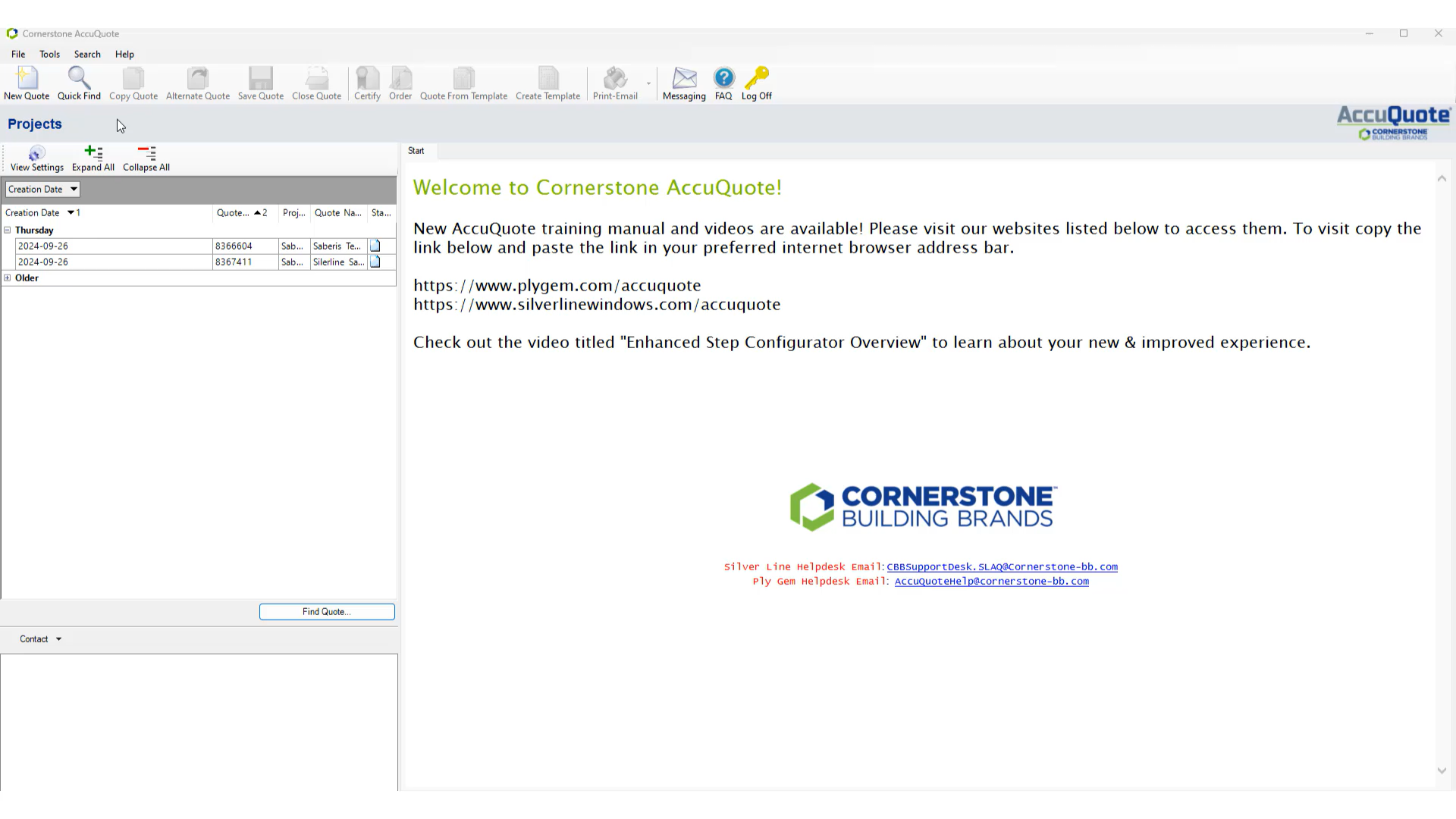
To activate the Saberis export process, first select "Tools" from the top bar.
-
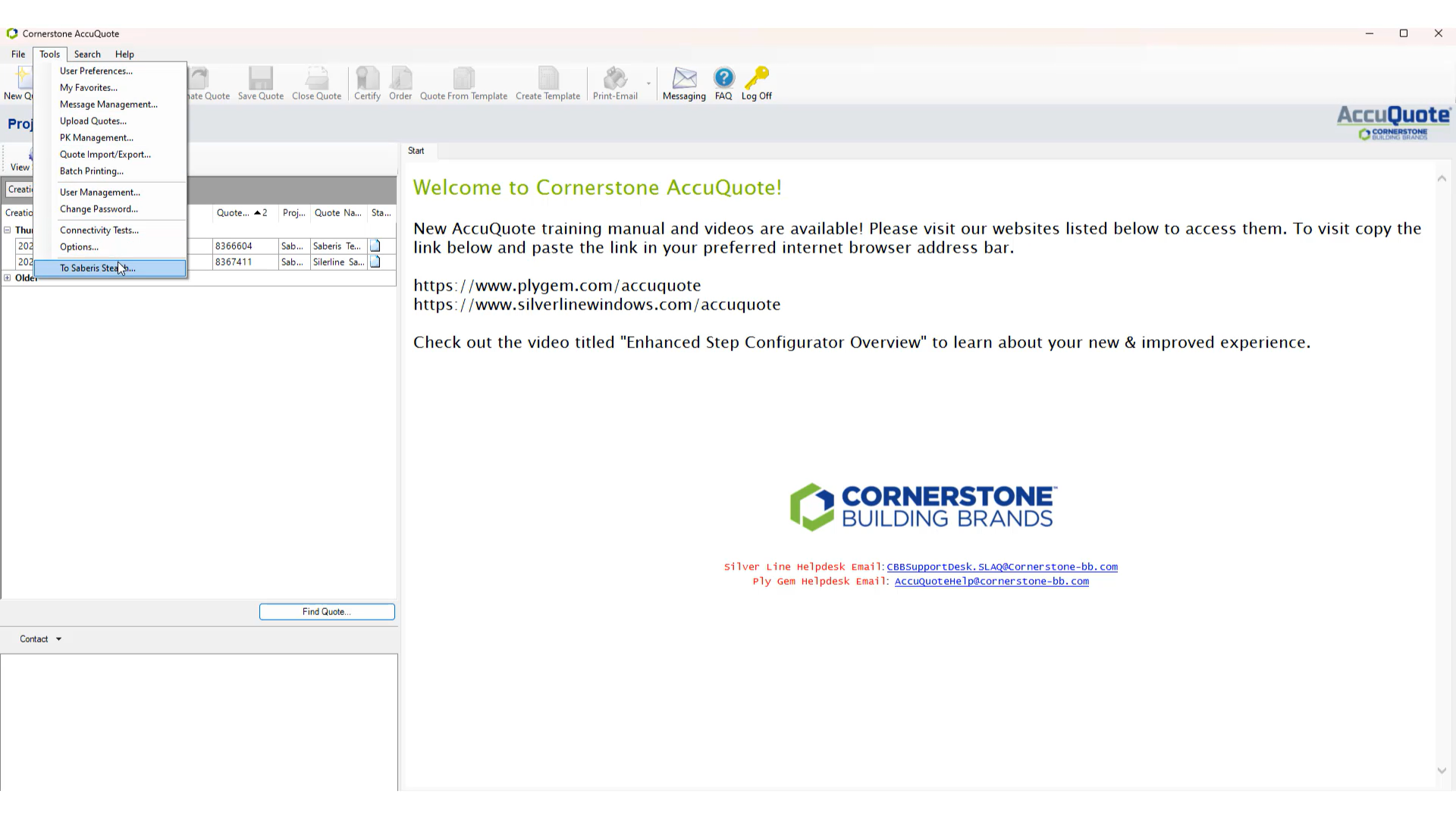
From the dropdown menu, select "To Saberis Stealth...".
-
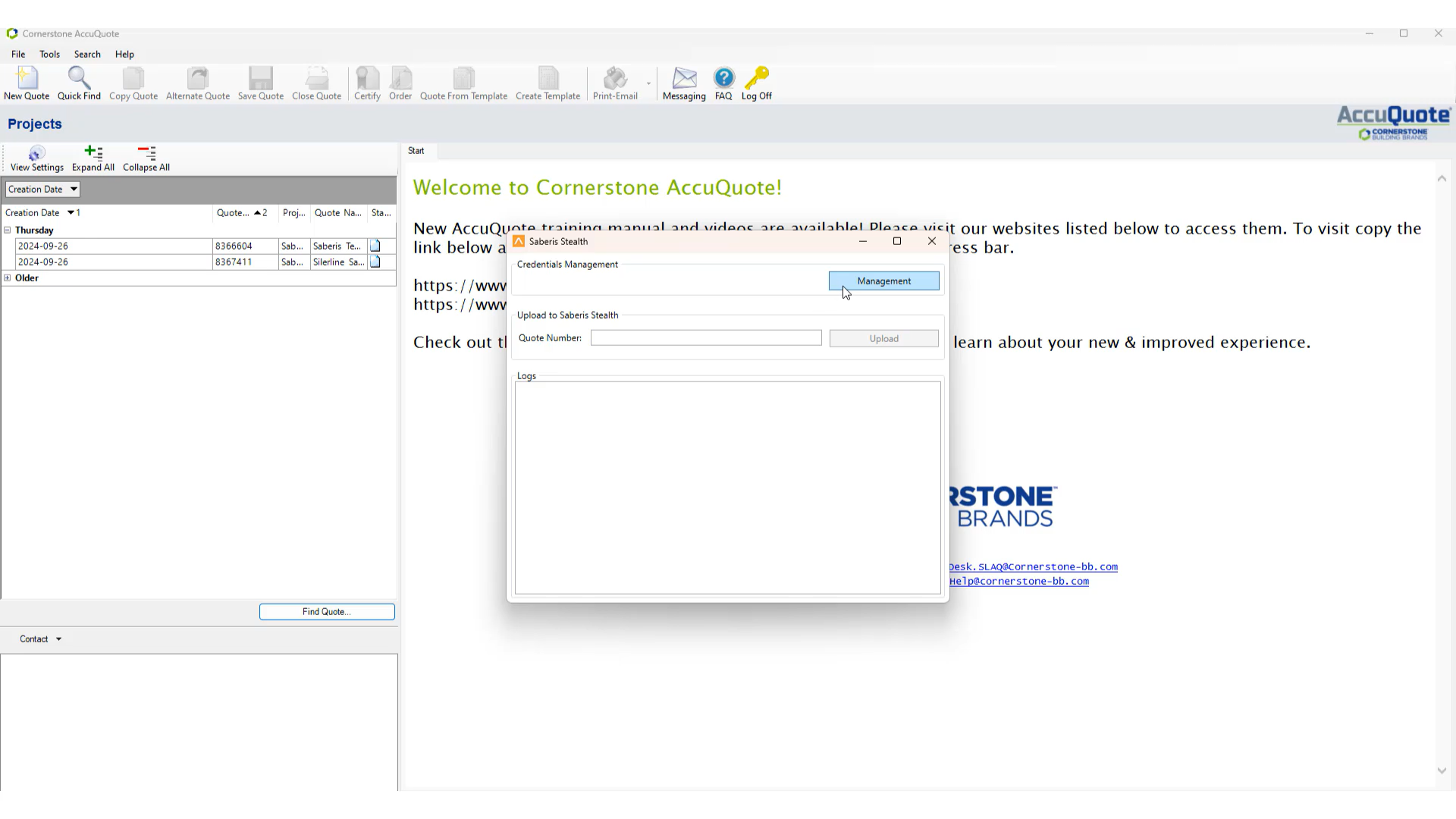
A new window will open. In the new window, select the "Management" button to enter in your Saberis credentials.
-
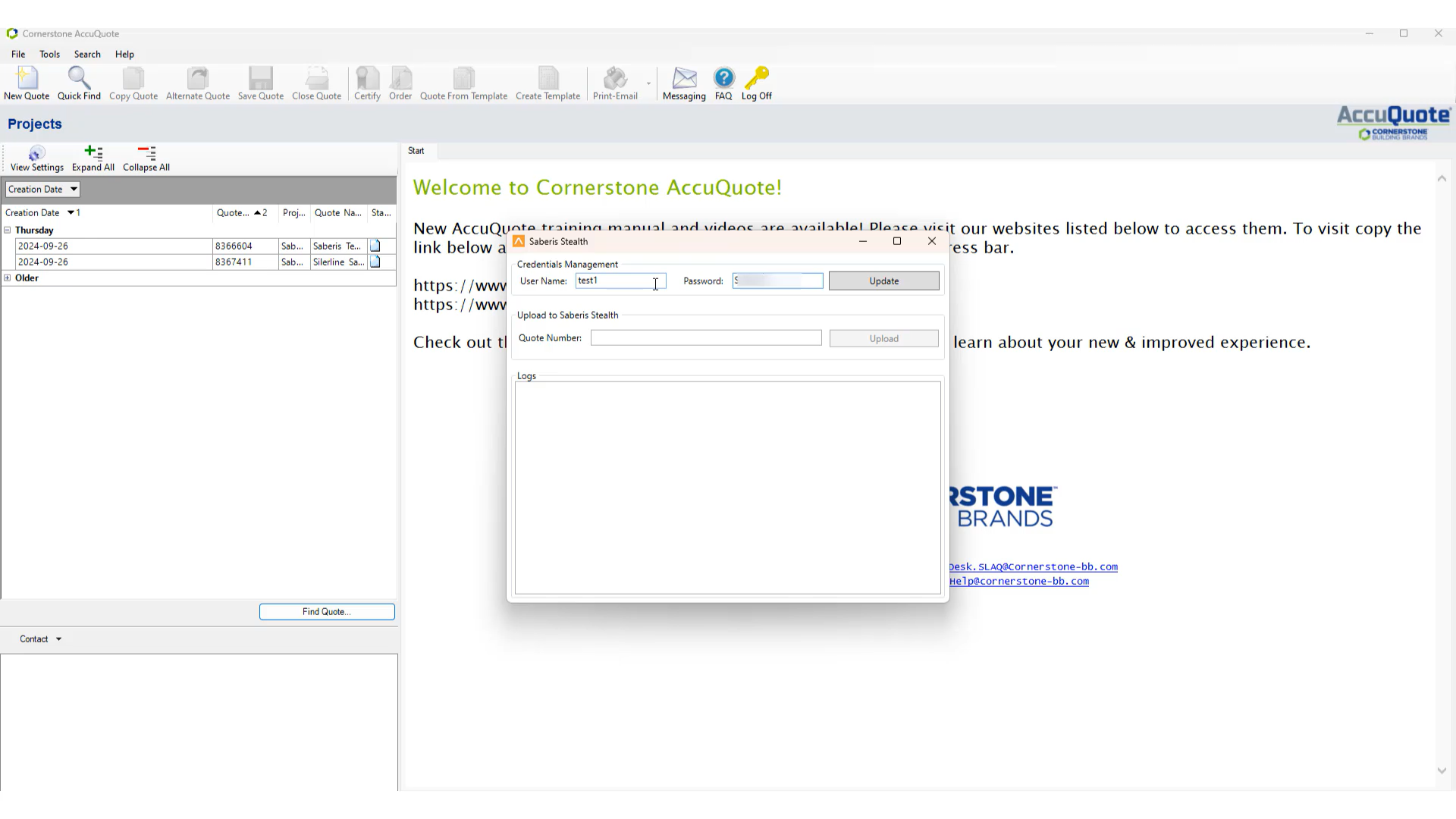
Enter in your Username and Password. Make sure you hit "Update" or else your credentials will not save.
-
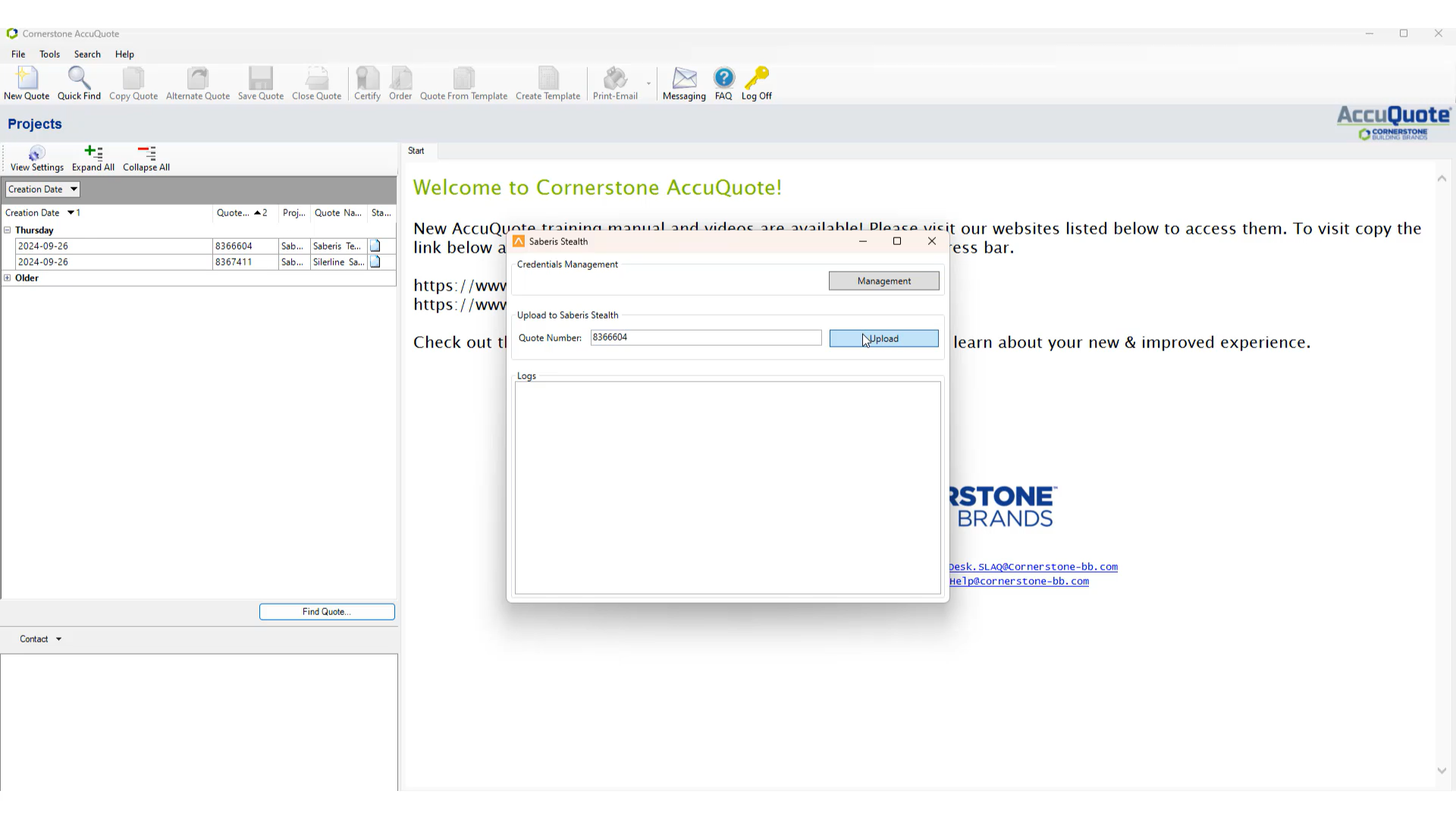
Finally, enter in your Quote number and hit "Upload".
-
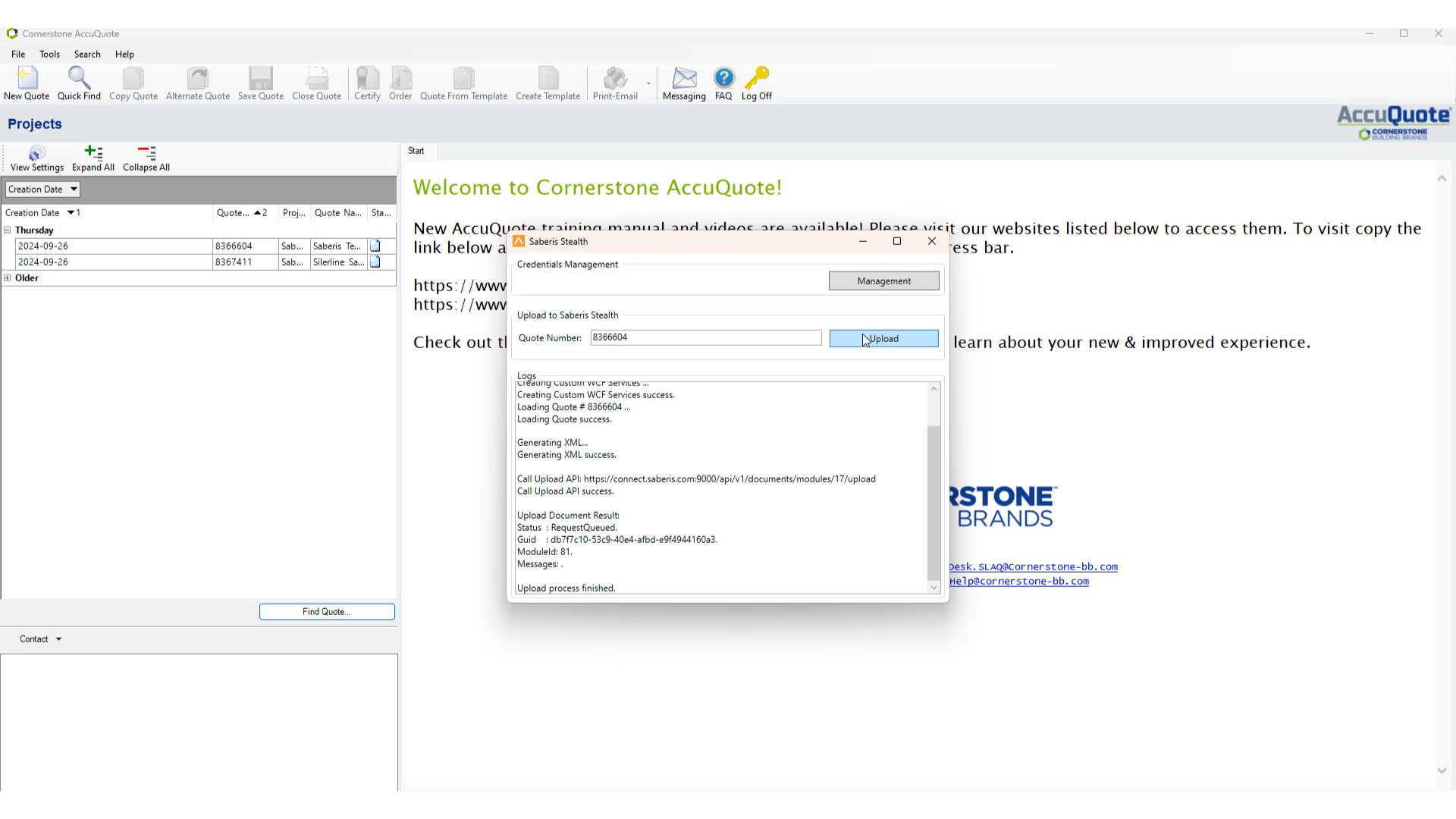
You should receive a message stating "Upload process finished." once it is finished processing.
Now go to your ERP system if the system is "pulling" down orders from the Saberis Server or if Saberis is "pushing" orders into the system.
If your system does not do the above, then log into your SaberisConnect account and you will see the quote/order already processed and ready for downloading.